I’m an amateur data nerd. Problem is it’s often hard to find good datasets that are also personally relevant. However, it’s often super easy to download some juicy data archives for data crunching at home (thanks data privacy legislation!). Here is a short guide to downloading some of these.
To get your Twitter data, go to “More” in the left-hand menu, then “Your Account”, then “Download an archive of your data”.
You’ll be prompted for your password and then archiving will be scheduled. A little later (e.g., a day or two), you’ll receive an email with a link to download the archive as a ZIP file. My archive was around 250MB so make sure you download over a fast internet connection!

You can view my ChatGPT-assisted analysis here.
Fitbit
Wow – you have to love the fellow data nerds at Google. This is a treasure trove of biometric data. I think it’s only been a few years since all your data has been available.

Click on “Settings” > “Data Export” > Request to export your data > click “Confirm” link in email > wait a bit > download.
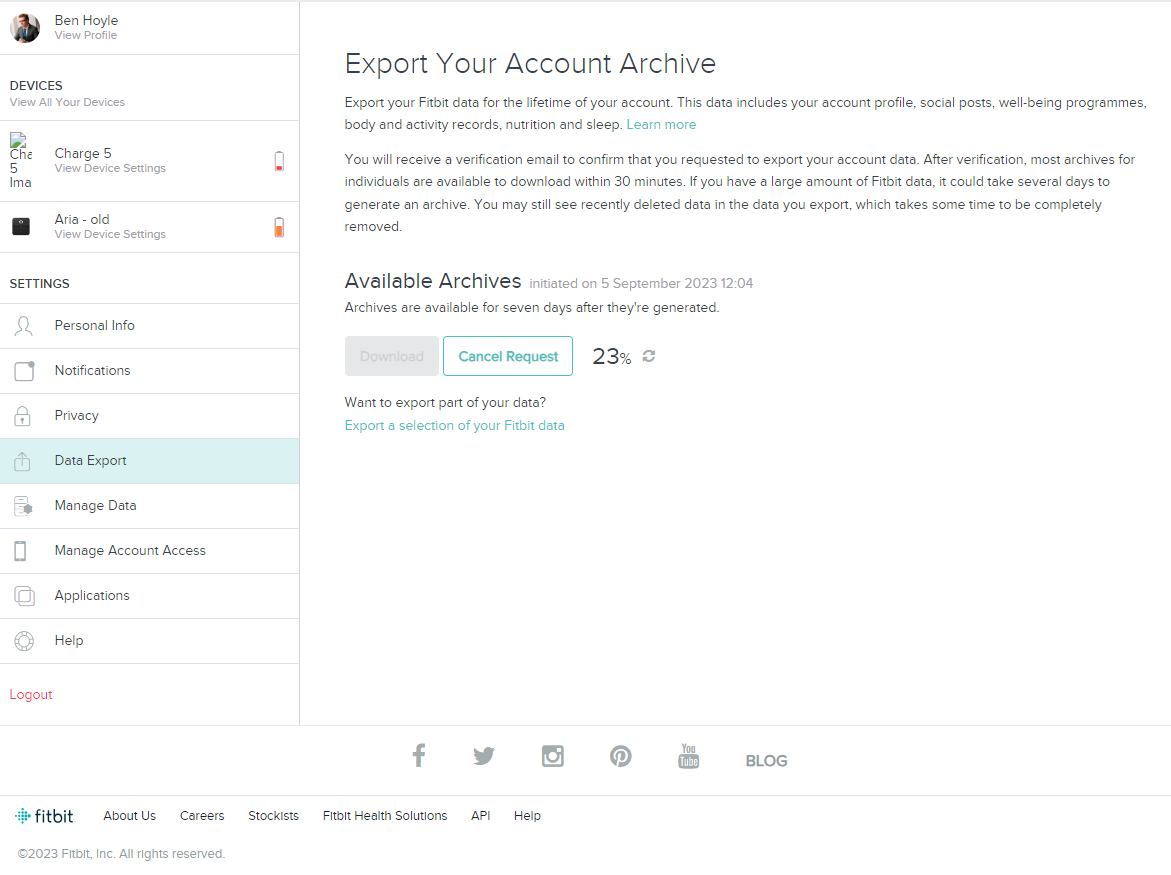
The result is a ZIP data archive. Mine was ~140MB compressed and has about 10 years of data.
Earlier data is likely incomplete due to backend architecture and/or earlier devices. My Menstrual Health data was also surprisingly absent (*sarcasm*).
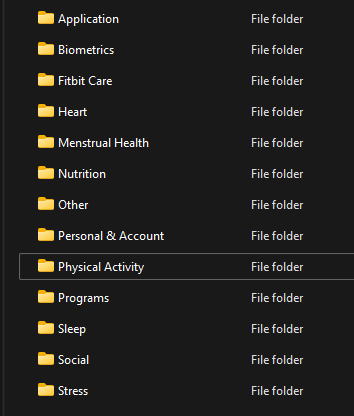
Useful directories here are:
- Physical Activity – classic steps, heart rate, active minutes etc.
- Sleep – a whole research project worth of data here
- Other – contains infra-red sensor data
I’ll try and do a post looking into this in more detail later.
Netflix Viewing History
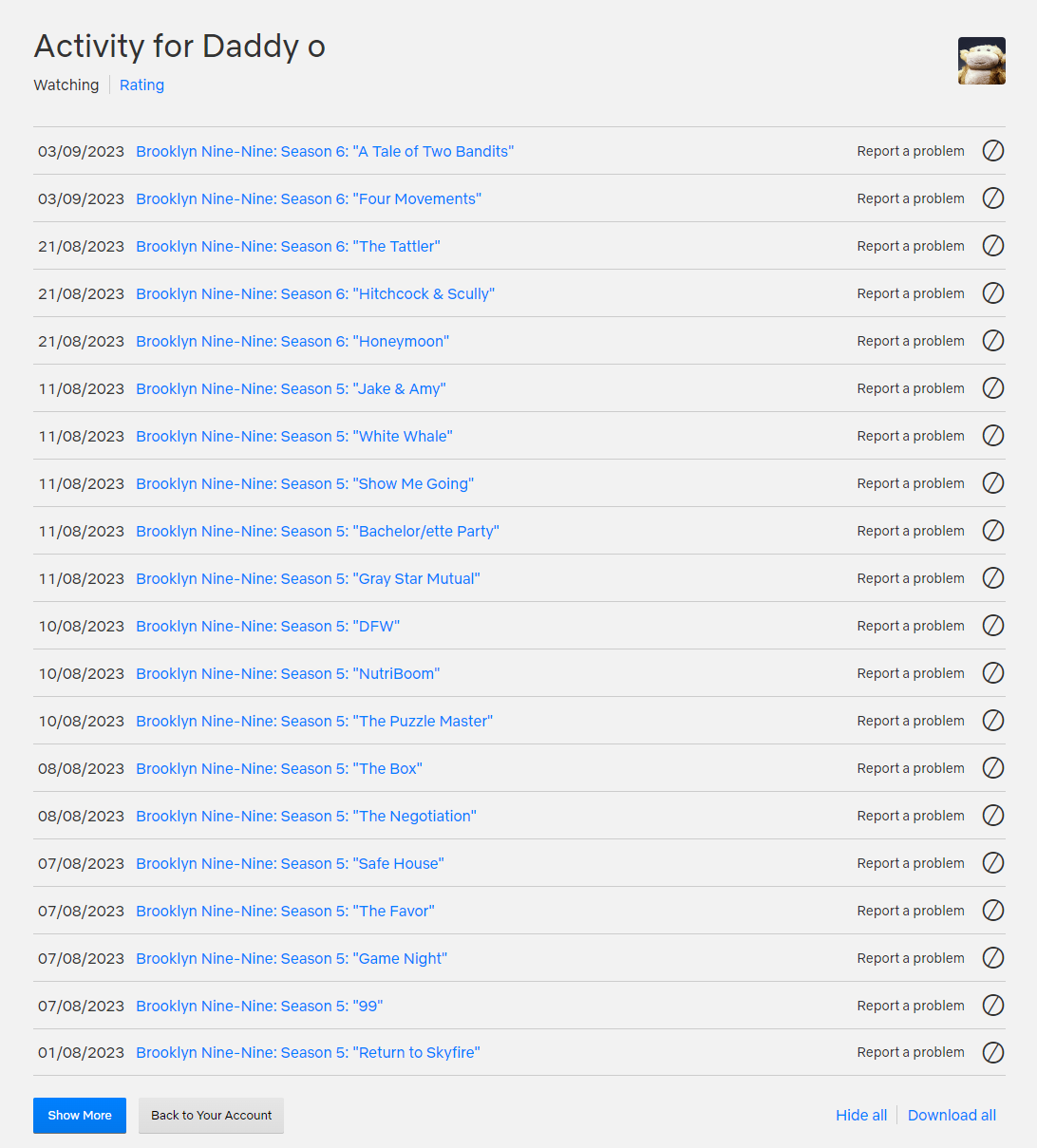
Who knew you could get a download of your viewing history? The download is in the form of a simple CSV file with program title and viewing date. I have data going back a decade!
Log into your Netflix account in the browser on a computer. Click on the icon in the top right-hand corner and select “Account” from the drop down. Scroll down to the profile you are interested in. Click “View” on the “Viewing activity” entry.

Then click “Download all” in the bottom right-hand corner.
You could correlate this with a Wikipedia or IMDB lookup if you needed more data on the program being viewed. One interesting Python project is “Cinemagoer” – https://pypi.org/project/cinemagoer/ – this offers a simple Python library to access IMDB data.
Spotify
Go to your account settings in a web browser – https://www.spotify.com/us/account/overview/.
Log in. Click on “Privacy settings” in the left-hand-side tool bar.
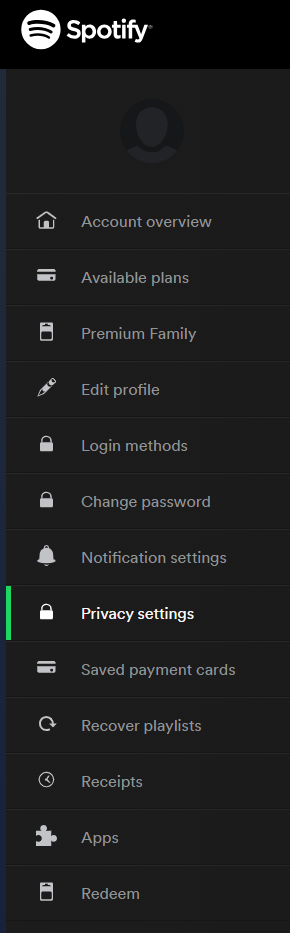
Scroll down to the bottom of the “Privacy settings” page and you’ll see a “Download your data” option. I requested both the “Account data” and the “Extended streaming history”.

Bank Data
Annoyingly each bank has a different format for transaction data. And a different way to download transactions. Oh for a simple “Download all transactions” button that just did that, providing the data as a CSV with an agreed accounting standard for the column headings.
The best format is CSV as you can read that using pandas, Excel, or just a plain old CSV parser.
I’ve found most banks only offer the last 12 months worth of transactions as a download. You thus need to set a reminder for a given date every year and download your transactions then.
Processing this into something useful often involves some custom scripts. I try to merge data from different banks into a common file and apply some simple string matching for classification.
Kindle Snippets
If you have a Kindle, did you know you can access all your highlights in a nice text file format?
Plug in your Kindle to a computer (Windows/Mac/Linux). Open up the newly appearing USB storage drive. In the “documents” folder look for a file called “My Clippings.txt” (or just search the drive for that file).
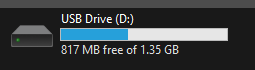

Once you find it, copy it to wherever you want to do your analysis.
I made a simple repository with some parsing, viewing, and clustering functions here.
Each clipping has a particular format (but they made some tweaks over time). They look like this:

The GitHub repository above helps you parse the file into a dictionary and also use OpenAI’s ada embeddings to build vector queries.
Evernote
Evernote doesn’t make it super easy to export data (lock-in = revenue) but you can export individual notebooks as either an Evernote specific “.enex” file (seems to be a custom XML format) or as a range of HTML files.
This guide shows you how to export on Windows and Mac – https://help.evernote.com/hc/en-us/articles/209005557-Export-notes-and-notebooks-as-ENEX-or-HTML.
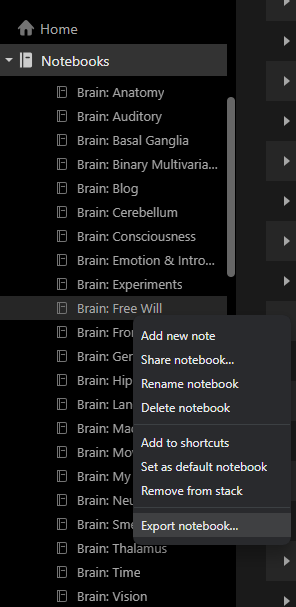
It’s quite slow – a notebook of ~100 notes took about 10 minutes to export.
You can use a Python library like beautiful-soup to parse this and convert to a Python dictionary. Images appear base64 encoded as strings so can be parsed, extracted, and loaded using a library such as PIL. The Evernote XML is probably the easiest to parse as notes are nicely arranged within XML tags.
You can also alternatively export as a single webpage or multiple webpages and also parse using beautiful soup. For the single webpage, this would involve iterating over HTML nodes and looking for <hr> tags that split different notes.

 Robotic Ape